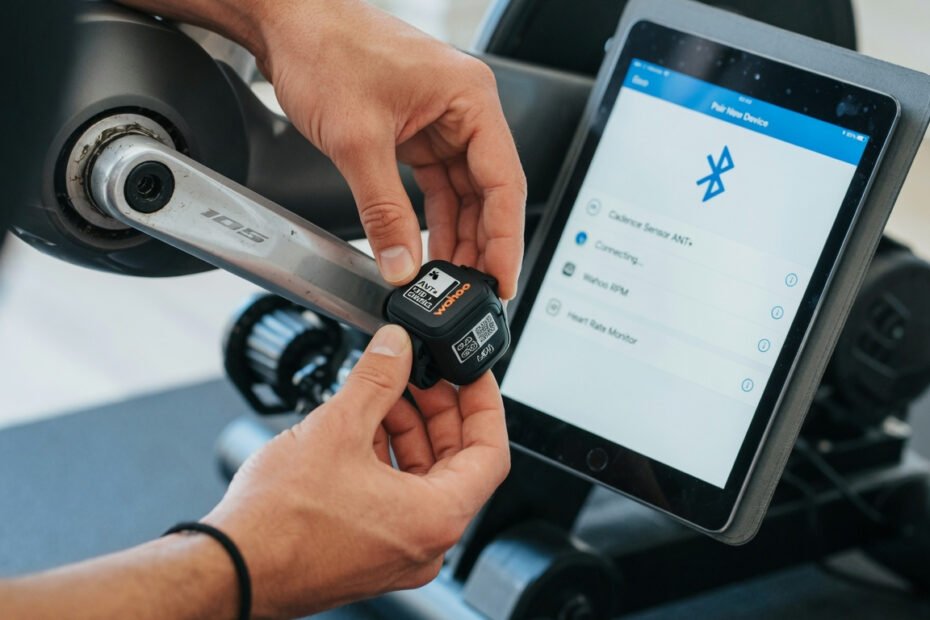
The short answer: yes, MyWhoosh and Garmin work together seamlessly, and setting up the integration takes less than ten minutes. Whether you want to pair your Garmin heart rate monitor before a virtual race, sync completed rides to Garmin Connect automatically, or run your Garmin Edge as a live display alongside the app, this guide walks you through every method in plain English.
Some of the links in this article may be affiliate links. If you make a purchase through these links, we may earn a small commission at no extra cost to you. Thank you.
MyWhoosh has grown into one of the most credible free indoor cycling platforms on the market, and Garmin users are among its most enthusiastic adopters. Because both ecosystems are built on open connectivity standards — Bluetooth LE and ANT+ — getting your devices talking to each other is far more straightforward than most cyclists expect. The integration is stable, reliable, and completely free from start to finish.

Key Takeaways
- Most Garmin sensors pair with MyWhoosh via Bluetooth LE or ANT+ in under two minutes
- MyWhoosh workouts sync to Garmin Connect through Strava or manual .fit file export — both methods are free
- You can run a Garmin Edge computer as a live data display simultaneously with MyWhoosh without any conflict
- MyWhoosh itself is 100% free, so adding Garmin connectivity costs nothing beyond the sensors you already own
What Is MyWhoosh Garmin Integration and Why Does It Matter?
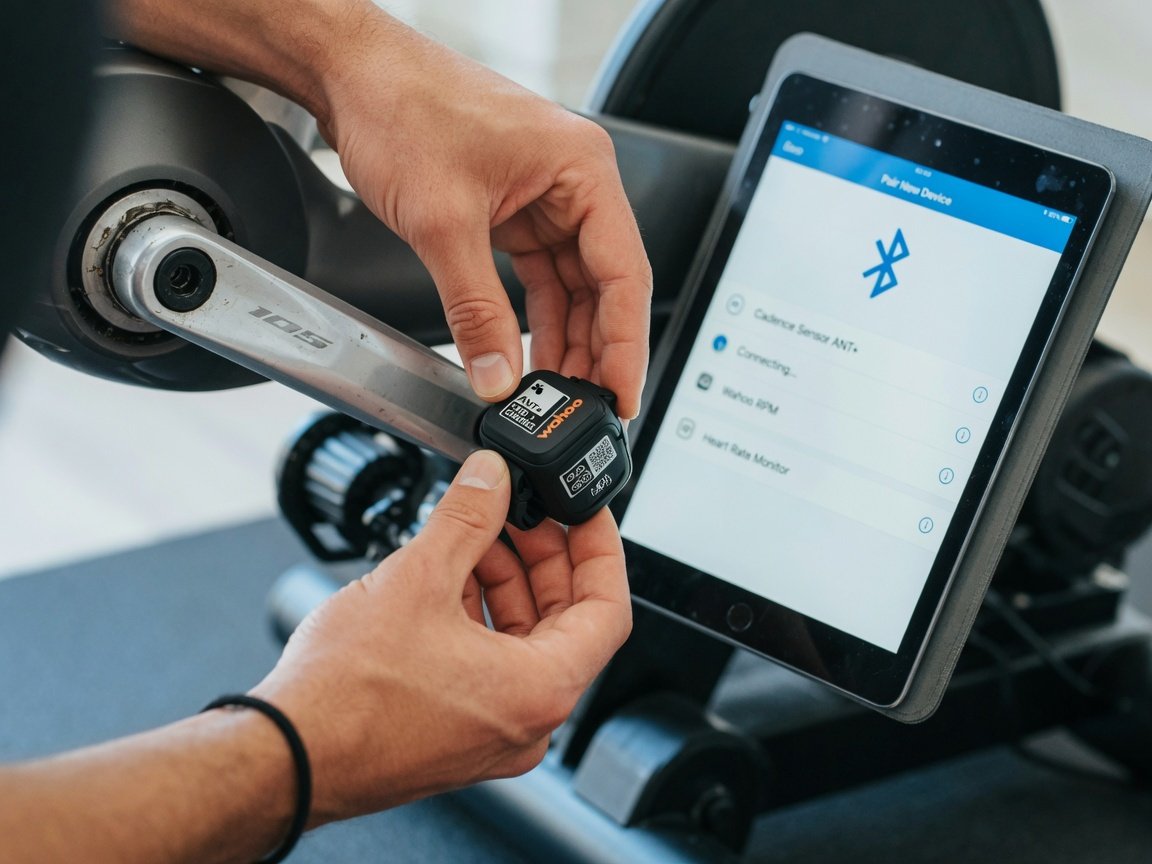
MyWhoosh Garmin integration refers to two separate but related things: connecting Garmin fitness sensors to the MyWhoosh platform in real time during a ride, and syncing completed workout data back to Garmin Connect for long-term training analysis. Both directions matter, and this guide covers both thoroughly.
Why does it matter? Because your training data is only as useful as the ecosystem it lives in. Most dedicated indoor cyclists have months or years of Garmin Connect history — VO2 Max estimates, training load trends, recovery advisor data — that they do not want to fragment across multiple disconnected apps. Keeping everything flowing into Garmin Connect means your MyWhoosh rides contribute to the same performance picture as your outdoor rides, your runs, and your swim sessions.
MyWhoosh launched publicly in 2021 and is backed by Abu Dhabi Sports Council. The platform is used professionally by riders from UAE Team Emirates, the WorldTour team that counts multiple Grand Tour winners among its roster. That association gives the platform serious credibility for structured, high-intensity training — not just recreational virtual cycling. And unlike Zwift, which charges approximately $14.99 per month, MyWhoosh costs absolutely nothing. That works out to roughly $180 per year that stays in your pocket while you still get professional-grade ERG mode, structured workouts, group rides, and races.
Garmin, meanwhile, is one of the most widely used brands among serious indoor cyclists. Their devices range from entry-level heart rate monitors to professional-grade power measurement pedals and high-resolution Edge cycling computers. Garmin Connect functions as the hub that ties all of that data together — making it the natural destination for your MyWhoosh ride files as well.
“Keeping your training data in a single ecosystem is critical for long-term performance tracking. Every disconnected app is a gap in your progression story.”
— Indoor cycling and performance coaches consistently advise athletes on training data consolidation
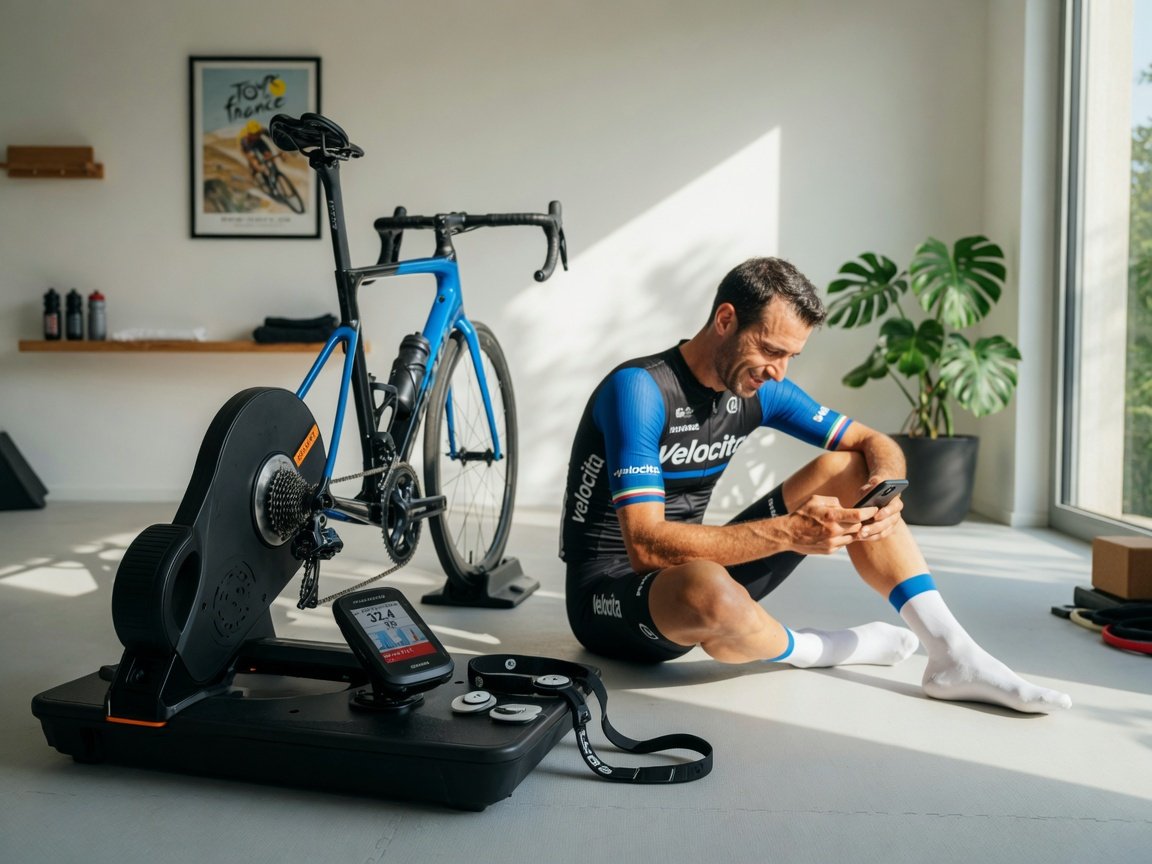
What Garmin Devices Are Compatible with MyWhoosh?
If your Garmin device broadcasts over Bluetooth LE or ANT+, it is almost certainly compatible with MyWhoosh. The platform runs on iOS, Android, Windows PC, and Apple TV — and each platform has slightly different connectivity options, so here is a breakdown by device type.
Garmin Heart Rate Monitors
Garmin HRMs from the HRM-Pro Plus, HRM-Dual, HRM-Run, and HRM-Tri families all connect to MyWhoosh. Any Garmin heart rate monitor released from around 2017 onwards broadcasts over both ANT+ and Bluetooth LE simultaneously, which means it is detected by MyWhoosh on every supported platform. Heart rate data is essential for zone-based training — MyWhoosh uses your live HR to validate ride intensity and calculate cardiovascular training load across sessions, so a reliable HRM connection is worth prioritising.
Garmin Power Meters
Garmin’s Rally power meter pedals — the RS100, RK100, and XC100 — and the older Vector 3 pedals connect to MyWhoosh via Bluetooth LE or ANT+. Power is the gold standard metric for indoor training because it removes variables like wind and gradient that affect outdoor speed, giving you a precise, repeatable effort measure every session. When you pair a power meter, MyWhoosh can display real-time watts on screen and use them to hold precise targets in ERG mode — the feature most serious indoor cyclists consider the whole point of a smart trainer setup.
Garmin Speed and Cadence Sensors
Newer Garmin dual-band speed and cadence sensors broadcast over both Bluetooth LE and ANT+ and pair cleanly with MyWhoosh on every platform. If you are using an older Garmin GSC-10 sensor, note that it broadcasts ANT+ only, which limits compatibility to PC or Android with an ANT+ USB dongle. For around $30 to $40, a modern dual-band speed and cadence sensor removes this limitation entirely and connects to MyWhoosh on mobile without any extra hardware.
Garmin Edge Computers and Watches
Your Garmin Edge cycling computer or Forerunner watch does not connect to MyWhoosh as a sensor. Instead, it connects directly to your smart trainer and records data in parallel with whatever MyWhoosh is doing. This independent recording approach is one of the most useful setups available to indoor cyclists, and there is an entire section below dedicated to how it works and why many experienced riders prefer it.
How Do You Connect Garmin Sensors to MyWhoosh? Step by Step
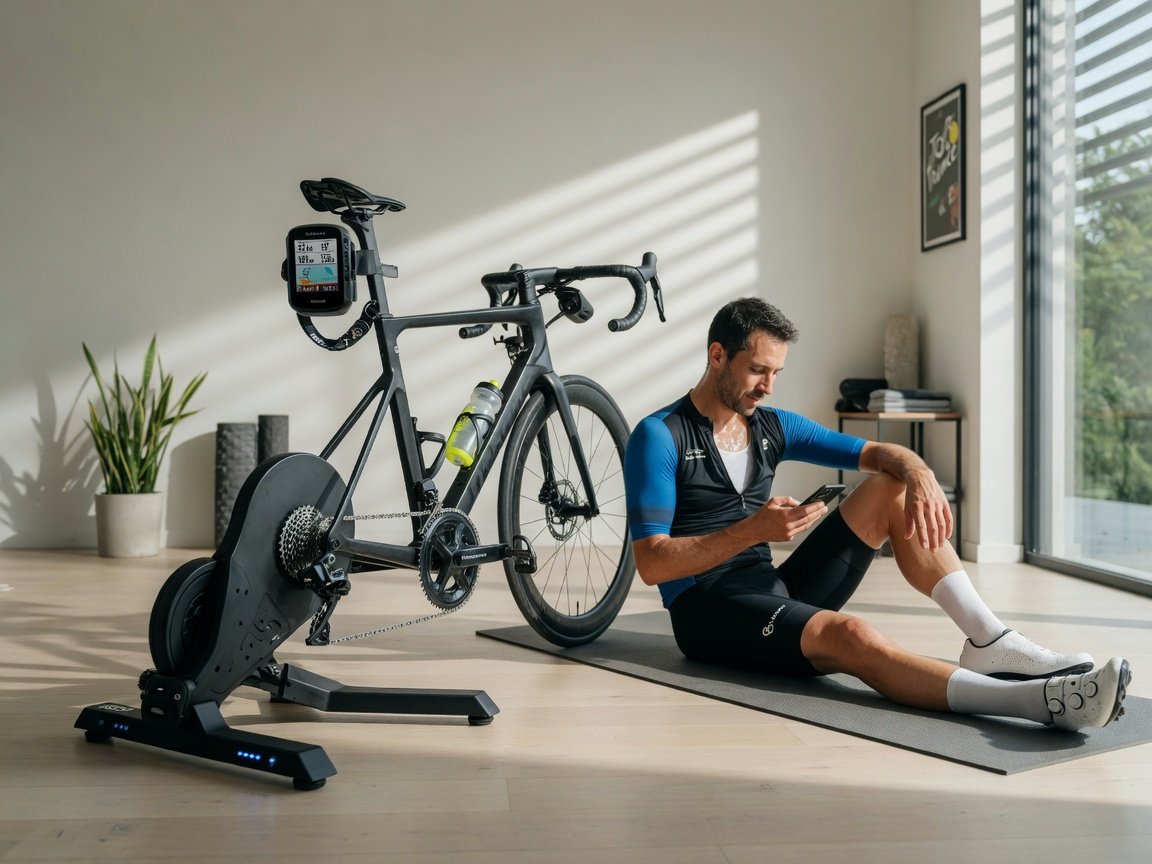
Pairing Garmin sensors to MyWhoosh follows the same process whether you are using the iOS app, Android, or the Windows desktop client. The steps below take around five to eight minutes the first time. After that, MyWhoosh remembers your devices and reconnects automatically at the start of every ride.
- Launch MyWhoosh and open the pre-ride Device Setup screen. Before selecting a route or event, look for the device or sensor icon near the ride start screen — it is usually represented by a Bluetooth or signal icon. Tap or click it to open the pairing panel.
- Enable Bluetooth on your device. MyWhoosh uses Bluetooth LE for sensor communication on mobile and tablet. On iOS, confirm Bluetooth is active in Settings. On Android, also make sure Location Services are enabled — Android requires location permission for Bluetooth LE scanning, even though you are not doing anything location-related. On Windows PC, if you prefer ANT+, plug in your USB ANT+ dongle and MyWhoosh will detect it automatically without any additional driver installation.
- Wake your Garmin sensor. Garmin heart rate monitors activate when they detect moisture — simply lick the electrode contacts or dampen them briefly. Power meter pedals wake when you move the crank arm through a rotation. Speed and cadence sensors activate when you spin the wheel or crank. Keep your sensors within about 3 metres of your device during pairing to ensure a clean initial connection.
- Tap Search or Scan inside the Device Setup panel. MyWhoosh will begin scanning for nearby sensors and list each detected device by type. Your Garmin sensor should appear within 10 to 20 seconds. If it does not, work through the troubleshooting steps in the dedicated section further below — the fix is almost always simple.
- Select your Garmin device from the detected list. Tap the device name to initiate pairing. MyWhoosh displays a connection animation followed by a green Connected indicator when the link is established. Repeat this process for each sensor you want to use — heart rate, power, and cadence are independent pairings and each gets its own green indicator.
- Calibrate your power meter if applicable. If you paired Garmin Rally or Vector 3 pedals, look for the Calibrate button in MyWhoosh’s device panel. Perform a zero-offset calibration with your foot off the pedal. This takes about five seconds and ensures your power readings are accurate within 1 to 2 percent from the very first pedal stroke.
- Assign sensors to the correct data channels. MyWhoosh lets you confirm which paired sensor provides heart rate, power, or cadence data. Check each channel assignment before starting to avoid duplicate or misassigned values on your ride screen — this step takes 30 seconds and prevents headaches mid-ride.
- Start your ride. Once all sensors show green indicators, you are ready. MyWhoosh maintains the Bluetooth or ANT+ connection throughout your session and displays live data on screen without requiring any further interaction from you.
The full process takes well under ten minutes on the first attempt. The MyWhoosh community broadly reports that Bluetooth LE pairing is the most reliable option on mobile devices, while ANT+ via USB dongle is the preferred setup on Windows for lower latency and a more stable connection during long, intense efforts where dropped data packets are particularly annoying.
How Do You Sync MyWhoosh Workouts to Garmin Connect?
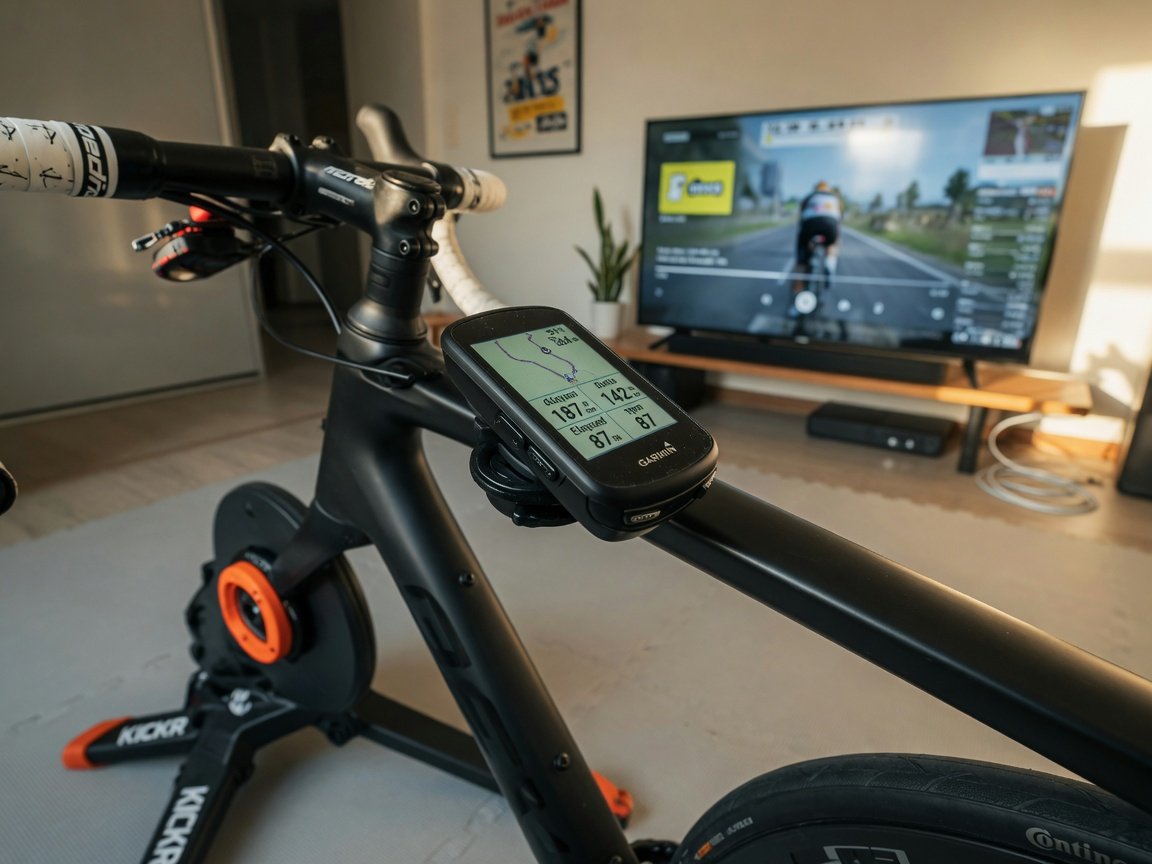
Finishing a strong MyWhoosh session and then seeing that effort reflected in Garmin Connect — where your Training Status, training load balance, and VO2 Max estimates all live — is what ties the entire indoor training ecosystem together. There are two reliable ways to sync MyWhoosh workouts to Garmin Connect, and both are completely free.
Method 1: The Strava Bridge (Recommended)
The most popular approach uses Strava as an automatic bridge between MyWhoosh and Garmin Connect. Configure it once and your rides flow from MyWhoosh to Strava to Garmin Connect after every session without any manual steps. Here is how to set it up:
- In MyWhoosh, go to Settings and open Connected Apps or the Integrations section.
- Find Strava in the list and tap Connect. You will be redirected to Strava to authorise the connection. A free Strava account works perfectly — you do not need a paid Strava subscription.
- In Garmin Connect, navigate to Connected Apps (accessible via the Garmin Connect website or the Garmin Connect app on your phone).
- Find Strava and authorise the connection. Garmin Connect and Strava maintain a two-way sync relationship, so activities on either platform are reflected on both.
- The chain is now live: finish a MyWhoosh ride → the activity uploads to Strava → Strava pushes it to Garmin Connect. The whole process typically completes within 5 to 15 minutes of finishing your ride.
This method is clean, hands-free, and works across all platforms MyWhoosh supports. The one thing worth noting is that indoor virtual rides occasionally import into Garmin Connect as generic cycling activities rather than specifically tagged indoor rides, depending on how Strava categorises the file. This has no meaningful impact on training load calculations, but if it bothers you, you can manually change the activity type in Garmin Connect in a couple of taps.
Method 2: Manual .FIT File Export
If you prefer not to use Strava, or if you are diagnosing a sync problem, you can export each MyWhoosh activity as a .fit file and import it directly into Garmin Connect. The .fit format is Garmin’s native activity format, so Garmin Connect accepts it with complete data fidelity — including power, cadence, heart rate, and virtual distance.
- Open MyWhoosh and navigate to your Activity History or ride log.
- Select the completed ride you want to export.
- Look for the download or export option — typically a download icon or share button — and select .fit as the file format.
- Save the file to your device.
- Open Garmin Connect on the web at connect.garmin.com and click the upload icon in the top-right corner.
- Select your .fit file and confirm. The activity appears in your Garmin Connect training history within seconds.
The manual method gives you full control and is the best option for verifying that the integration works before relying on the automated Strava bridge. Most cyclists use this method once to confirm everything is working, then configure the Strava connection for day-to-day convenience.
Can You Use a Garmin Edge Computer While Riding on MyWhoosh?
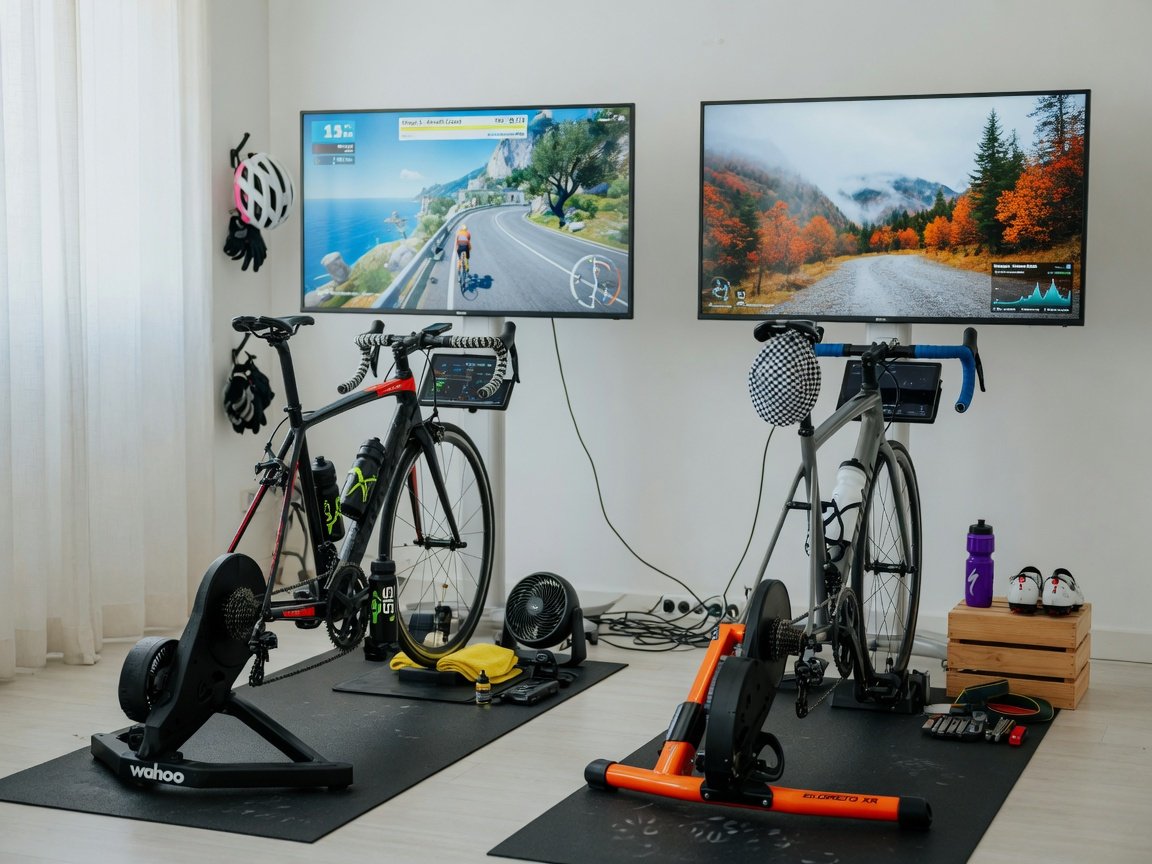
Yes — and it is a setup that more experienced indoor cyclists are deliberately configuring. The key insight is that your smart trainer broadcasts ANT+ data to any device that is listening, regardless of whether MyWhoosh is also connected. This means your Garmin Edge can pair directly to your trainer as it normally would outdoors and record a complete, independent activity file at the same time as MyWhoosh controls resistance and virtual position.
The practical benefit of this dual-recording approach is automatic Garmin Connect syncing. When you finish a ride, your Garmin Edge syncs the activity to Garmin Connect via your phone just as it always does — no manual export, no Strava bridge needed, no post-ride steps at all. Your training load updates immediately. Many indoor cyclists specifically prefer this setup for reliability: even if MyWhoosh has a connectivity hiccup or the app crashes mid-ride, the Garmin Edge recording continues uninterrupted.
One important detail: Bluetooth connections are device-exclusive on most sensors, meaning only one device can hold a Bluetooth link to a sensor at a time. ANT+ does not have this restriction and allows simultaneous connections from multiple listeners. If you want both MyWhoosh and your Garmin Edge reading the same power meter, connect MyWhoosh to the power meter via Bluetooth and let the Garmin Edge pick up the ANT+ broadcast. Virtually all dual-channel power meters — including Garmin Rally pedals — support this split-protocol setup natively.
Garmin watches from the Forerunner 965, Fenix 7, and Epix series work exactly the same way. Start an indoor cycling activity on your watch before beginning your MyWhoosh session, and the watch records independently from your trainer’s ANT+ broadcast throughout the ride.
How Do You Fix MyWhoosh Garmin Connection Problems?
Connection issues between MyWhoosh and Garmin sensors almost always trace back to a handful of repeatable causes. Work through the checklist below in order and you will resolve the problem in the vast majority of cases without needing to contact support.
- Check your sensor battery first. This is the single most common cause of detection failures. Garmin coin-cell batteries — typically CR2032 — last 12 to 18 months with regular use, but power can drop suddenly and without much warning. If your sensor has not had a fresh battery in over a year, replace it before troubleshooting anything else.
- Close all competing apps. If another fitness app — Garmin Connect, TrainerRoad, Wahoo SYSTM, or a previous MyWhoosh session — is holding an active Bluetooth connection to your sensor, MyWhoosh cannot claim it. Force-quit all other fitness and health apps on your device completely, then reopen MyWhoosh and scan again.
- Toggle Bluetooth off and back on. This clears stale connections and forces a clean re-scan. On iOS, toggle in Control Centre. On Android, toggle in Settings. Wait a full five seconds between turning Bluetooth off and turning it back on before reopening Device Setup.
- Confirm Android location permissions are enabled. Android requires location permission to be active for Bluetooth LE scanning, regardless of the app’s purpose. Without this permission, MyWhoosh physically cannot find Bluetooth sensors. Check that MyWhoosh has location permission enabled in your phone’s App Settings under Permissions.
- Keep sensors within 3 metres during pairing. Bluetooth LE has a nominal open-air range of around 10 metres, but in a typical pain cave with metal frames, concrete walls, and competing devices, effective pairing range can drop to 3 metres or less. Move your device closer to your sensors during the initial scan, then maintain normal positioning once paired.
- Restart MyWhoosh after a failed scan. If the device scan completes without finding your sensor, close the app entirely and reopen it. This refreshes the Bluetooth stack within the app and resolves the majority of one-off detection failures.
- Update your Garmin sensor firmware. Garmin periodically releases firmware updates for sensors and devices that improve Bluetooth LE compatibility. Connect your Garmin hardware to Garmin Express on PC or Mac, or check for updates via the Garmin Connect app, to ensure you are running current firmware.
- On Windows PC, switch from Bluetooth to ANT+. If Bluetooth connectivity is unreliable on your Windows machine, switching to an ANT+ USB dongle typically resolves it. ANT+ is more stable than Windows Bluetooth for fitness sensor applications, delivers lower latency during ERG mode workouts, and supports simultaneous connections from your Garmin Edge without conflict.
How Does MyWhoosh Garmin Integration Compare to Zwift?
Both MyWhoosh and Zwift support Garmin sensor connectivity and allow workout export to Garmin Connect. From a pure integration standpoint, the two platforms are closely matched. Here is how they compare as of 2025:
| Feature | MyWhoosh | Zwift |
|---|---|---|
| Platform cost | Free | ~$14.99/month |
| Bluetooth LE sensor support | Yes | Yes |
| ANT+ sensor support | Yes (PC via dongle) | Yes (PC via dongle) |
| Workout sync to Garmin Connect | Via Strava bridge or .fit export | Via Strava bridge or .fit export |
| Garmin Edge parallel recording | Yes (ANT+) | Yes (ANT+) |
| Apple TV support | Yes | Yes |
| ERG mode support | Yes | Yes |
| Structured workout library | Yes (free) | Yes (subscription required) |
| Professional team usage | UAE Team Emirates | Various teams |
The practical difference between the two platforms is minimal from a Garmin integration standpoint. Both use the same ANT+ FE-C and FTMS trainer control protocols, the same Bluetooth LE and ANT+ sensor pairing workflows, and the same Strava bridge for Garmin Connect sync. Indoor cycling coaches who work with athletes on both platforms consistently report that training data quality is identical when the same sensors are used. The choice between MyWhoosh and Zwift comes down to user experience preferences and event calendar priorities — not data integration capability. The $14.99 monthly Zwift cost is the more meaningful differentiator for budget-conscious cyclists who want the full structured training experience.
What Are the Best Tips for Maximising Your MyWhoosh Garmin Setup?
Once the basic connection is working, a handful of configuration decisions make a real difference to how reliable and useful your setup becomes over the long term. These are the tips that experienced indoor cyclists typically learn through trial and error — here they are upfront so you can skip straight to the optimised experience.
- Use ANT+ for power meters on PC, Bluetooth for everything else on mobile. ANT+ delivers lower latency from pedal-based power meters — a genuine advantage during ERG mode intervals where MyWhoosh needs to respond quickly to hold your target watts precisely. Bluetooth LE is perfectly adequate for heart rate and cadence on mobile where ANT+ dongles are not practical.
- Set up the Strava bridge before your first training block, not after. Configuring the MyWhoosh-to-Strava and Strava-to-Garmin Connect connections takes about three minutes. Doing it before day one means your entire training block flows into Garmin Connect automatically, giving you an accurate Training Status picture right from the start rather than a retroactive patchwork of imported files.
- Enable dual recording on your Garmin Edge for rides over 90 minutes. For longer endurance sessions and race simulations, having an independent hardware recording on your Garmin Edge means you have a complete backup if the MyWhoosh app crashes or your internet drops. The ANT+ connection between your Edge and trainer is completely unaffected by any software-side issues.
- Check the activity type in Garmin Connect after the first few Strava syncs. Rides coming in via Strava sometimes import as generic cycling activities. You can change the type to Indoor Cycling in Garmin Connect in two taps — it takes five seconds and ensures your Training Effect and training load metrics are calculated using the correct sport profile.
- Calibrate your power meter at the start of every cold session. Temperature affects power meter calibration more than most cyclists realise. A zero-offset calibration at the beginning of each MyWhoosh session, before your warm-up, keeps power readings consistent within 1 to 2 percent across all effort levels.
- Use Garmin Connect’s Training Status feature as your long-term progress indicator. After several weeks of MyWhoosh data flowing into Garmin Connect, Training Status gives you a longitudinal view of load balance, peak aerobic performance, and recovery — it is one of the most underused features in the Garmin ecosystem and pairs naturally with MyWhoosh’s structured workout progression.
- Keep Garmin Express installed on your PC for firmware maintenance. Running Garmin Express every few months keeps your sensors and Edge devices on current firmware, which directly improves Bluetooth and ANT+ compatibility with MyWhoosh updates. It takes about five minutes and prevents a class of connection issues that are otherwise hard to diagnose.
What Does the Future Look Like for MyWhoosh Garmin Integration?
The trajectory for MyWhoosh as a platform points toward deeper ecosystem integration rather than staying as a standalone training environment. Since its backing by Abu Dhabi Sports Council and its association with elite professional teams, the platform has received consistent updates expanding its connectivity options, structured training capabilities, and event programming. For Garmin users specifically, the trend across the indoor cycling category is toward more direct platform-to-platform integration — reducing reliance on Strava as a middle step and enabling richer data transfers that carry workout structure, planned vs actual metrics, and training zone analysis directly between apps.
The broader fitness technology sector is also pushing toward health platform unification. Garmin Connect’s Health Snapshot features and its integration with health APIs suggest that within 2025 and 2026, the data chain between indoor cycling apps and comprehensive health tracking platforms will become more automated and more data-rich. Cyclists who establish the MyWhoosh Garmin workflow now will be well-positioned to benefit from those improvements without any re-configuration — the Strava bridge and .fit file import methods are stable foundations that have worked across multiple generations of app updates from both platforms.
For MyWhoosh specifically, the platform’s rapid growth — driven largely by its free model at a time when subscription costs for fitness platforms have been increasing across the board — suggests continued investment in connectivity features. The free positioning means MyWhoosh has a strong incentive to match or exceed the integration capabilities of paid competitors to retain and grow its user base.
Frequently Asked Questions About MyWhoosh Garmin Integration
Does MyWhoosh work with Garmin devices?
Yes. MyWhoosh supports Bluetooth LE and ANT+ connectivity, which covers the full range of modern Garmin sensors — heart rate monitors, power meters, and speed and cadence sensors. If your Garmin device broadcasts over either of those wireless protocols, which virtually all Garmin fitness hardware released from 2017 onwards does, it will pair with MyWhoosh across all supported platforms including iOS, Android, Windows PC, and Apple TV.
How do I sync MyWhoosh workouts to Garmin Connect?
The most convenient method is the Strava bridge. Connect MyWhoosh to Strava in the Connected Apps section, then connect Strava to Garmin Connect. After each ride, the activity flows automatically from MyWhoosh through Strava to Garmin Connect — typically within 5 to 15 minutes. A free Strava account is all you need. If you prefer not to use Strava, export your ride as a .fit file from MyWhoosh’s activity history and import it manually into Garmin Connect on the web. Both methods are free and transfer complete ride data including power, cadence, and heart rate.
Can I use my Garmin heart rate monitor on MyWhoosh?
Absolutely. Any Garmin HRM that broadcasts over Bluetooth LE — including the HRM-Pro Plus, HRM-Dual, HRM-Run, and HRM-Tri — pairs directly with MyWhoosh. Go to Device Setup inside the app, enable Bluetooth, wake your HRM by dampening the electrode contacts, and tap scan. Your heart rate monitor should appear in the device list within about 15 seconds. Tap it to confirm the pairing and you will see a green Connected indicator before you start your ride.
Why isn’t my Garmin sensor showing up in MyWhoosh?
The four most common causes are a low or dead sensor battery, Bluetooth turned off on your device, another app currently holding an active connection to the sensor, or the sensor being too far from your device during scanning. Start by toggling Bluetooth off and on, force-quitting all other fitness apps, and positioning your sensor within 2 to 3 metres. If none of those steps work, replace the battery — it is the fix that resolves the majority of persistent detection failures.
Can I use my Garmin Edge computer while riding on MyWhoosh?
Yes, and many indoor cyclists deliberately set this up. Your smart trainer broadcasts ANT+ data independently to any listening device. Mount your Garmin Edge, pair it to your trainer via ANT+, and start a cycling activity on the Edge before beginning your MyWhoosh session. The Edge records power, cadence, speed, and heart rate simultaneously while MyWhoosh controls resistance. When you finish, your Garmin Edge syncs the complete activity to Garmin Connect automatically — no manual export required. Connect MyWhoosh to your trainer via Bluetooth to avoid any ANT+ conflicts between the two.
Is MyWhoosh Garmin integration free?
Yes, entirely. MyWhoosh is completely free with no subscription fee. Connecting Garmin sensors costs nothing beyond the hardware you already own. Syncing workouts to Garmin Connect via the Strava bridge requires a Strava account — the free tier is sufficient, no Strava paid plan needed. Importing .fit files to Garmin Connect is also free. The total cost of the MyWhoosh Garmin integration is zero, which compares favourably to paid platforms like Zwift at approximately $14.99 per month.
Will MyWhoosh drain my Garmin sensor battery faster than other apps?
No more than any other platform. MyWhoosh uses the same standard Bluetooth LE polling rate as Zwift, TrainerRoad, and other indoor cycling apps. Garmin’s HRM sensors are designed for continuous low-power broadcasting during workouts, and battery life — typically 12 to 18 months with daily use — is determined by the sensor hardware and usage frequency, not by which specific app is reading the data.
Your Next Steps: Getting Your MyWhoosh Garmin Setup Running Today
The MyWhoosh Garmin integration sounds more involved than it actually is. In reality, you can go from zero to fully connected — sensors paired, workouts syncing automatically to Garmin Connect — in well under 30 minutes. Here is a practical implementation timeline you can follow right now:
- Minutes 1 to 5: Download MyWhoosh — it is free on iOS, Android, Windows PC, and Apple TV — and create your account if you have not already. The app download and account setup combined take about four minutes.
- Minutes 5 to 12: Open Device Setup in MyWhoosh, enable Bluetooth on your device, wake your Garmin sensors, and pair each one. Confirm you see green connection indicators for heart rate, power, and cadence before moving on.
- Minutes 12 to 16: In MyWhoosh Connected Apps, link your Strava account. Then open Garmin Connect and link Strava there too. Your automatic workout sync pipeline is now live and requires no further configuration.
- Minutes 16 to 20: Optional but recommended — pair your Garmin Edge or watch directly to your trainer via ANT+ for dual recording. Start a cycling activity on the Garmin device before beginning any MyWhoosh ride.
- Day 1 onwards: Complete your first MyWhoosh ride and check Garmin Connect within 15 minutes. When you see the activity appear there with complete power, heart rate, and cadence data, your setup is working perfectly. From that point forward it requires no maintenance — just ride.
The combination of MyWhoosh’s zero-cost platform and Garmin’s deep training ecosystem gives you a genuinely powerful indoor training setup. You get ERG mode workouts, virtual racing, structured training plans, and comprehensive long-term training analysis in Garmin Connect — all without a monthly subscription. If you encounter any friction along the way, the troubleshooting section above covers the scenarios that account for the majority of connection issues. The MyWhoosh community forums are also an active and helpful resource for the occasional edge case that falls outside standard troubleshooting steps.
— “`json